
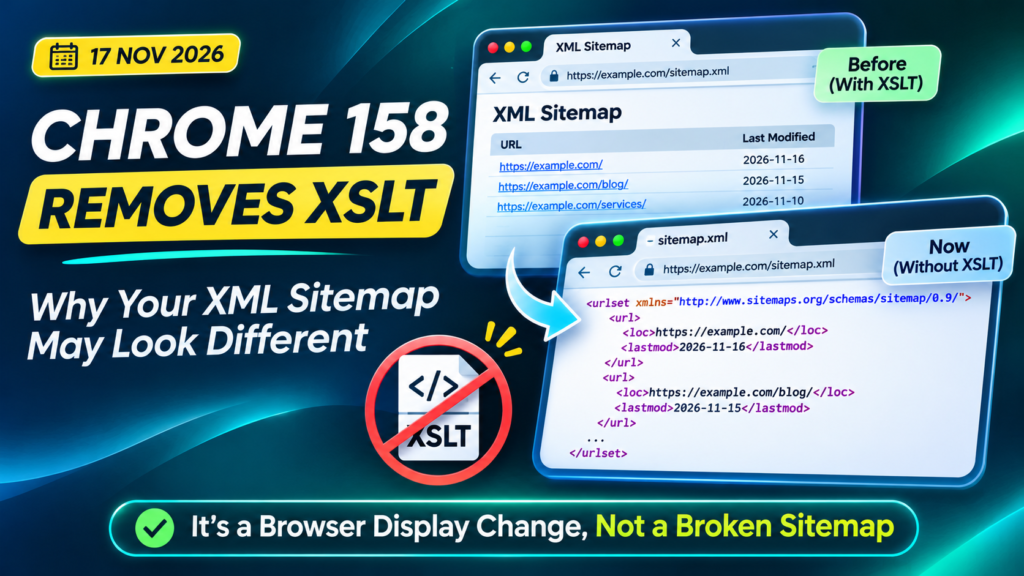
If you recently opened your website’s XML sitemap in Google Chrome and saw a page full of XML code instead of a clean, readable table, don’t panic. Your sitemap may still be working correctly.
Chrome 158 removes support for browser-side XSLT, a technology some websites use to turn XML sitemap data into a formatted page. The change affects how certain XML files are displayed in the browser. It does not, by itself, stop search engines from fetching or processing valid XML sitemaps.
The key takeaway: this is primarily a browser display change, not proof that your sitemap is broken or that Google has stopped reading it.
1. What changed in Chrome 158?
Chrome 158 removes support for browser-side XSLT features, including the legacy XSLT processing API and the XML stylesheet processing instruction used to attach an XSLT stylesheet to an XML document.
Some sitemap files include a reference like this near the top:
<?xml-stylesheet type="text/xsl" href="sitemap.xsl"?>When a browser supported this instruction, it could transform the raw XML into a human-friendly table showing page URLs and other sitemap information. Without that browser-side transformation, Chrome may show the underlying XML instead.
Chrome’s removal is part of its move away from the legacy XSLT implementation. Check the official Chrome documentation for the current rollout and any temporary enterprise or trial exceptions.
2. Why does an XML sitemap look different?
An XML sitemap is a structured file that lists URLs on a website and can provide additional information, such as when a page was last modified. It is designed primarily for search engines and other automated systems, not as a polished page for visitors.
Some website platforms and SEO plugins add an XSLT stylesheet to make the XML easier for people to read.
- Before: the browser may show a formatted table with clickable URLs and last-modified dates.
- After: the browser may show the raw XML elements and values.
The underlying sitemap data can remain unchanged. A different visual presentation does not automatically mean the XML file is invalid.
3. Does Chrome 158 affect SEO rankings or Google indexing?
The browser display change alone is not a reason to expect a ranking or indexing drop. Search engines fetch and parse the XML sitemap data; they do not need the browser to render its XSLT presentation as a table.
For SEO, the important questions remain:
- Can Google access the sitemap URL?
- Does the server return a successful HTTP response?
- Is the XML well-formed and valid for the sitemap format?
- Does it list the correct, canonical URLs that you want search engines to discover?
- Can Google process the submitted sitemap in Search Console?
Do not remove or replace a working sitemap just because Chrome now displays raw XML.
4. Which websites and SEO plugins may be affected?
The impact depends on whether the sitemap’s human-friendly browser view relies on XSLT. It is not safe to assume that every site or every version of a plugin behaves the same way.
WordPress websites
WordPress and SEO plugins can provide styled sitemap views. Check the actual XML output and its stylesheet reference rather than assuming your site is affected.
Yoast SEO
If your sitemap output references an XSLT stylesheet, its formatted appearance may be affected in Chrome. Check your current plugin version and generated sitemap.
Rank Math
Open the sitemap generated by your installation and inspect the beginning of the XML. The presence and use of an XSLT reference is more useful than relying on the plugin name alone.
All in One SEO and other tools
Apply the same check to any sitemap generator or custom implementation. Different versions and configurations may produce different output.
5. How to check whether your sitemap uses XSLT
Step 1: Open your sitemap URL
Common WordPress sitemap addresses include:
https://example.com/wp-sitemap.xmlhttps://example.com/sitemap_index.xmlhttps://example.com/sitemap.xml
Your website may use a different address depending on its platform and SEO plugin.
Step 2: Inspect the start of the XML file
Look for an XML stylesheet instruction such as:
<?xml-stylesheet type="text/xsl" href="sitemap.xsl"?>If you find this reference, the sitemap is asking the browser to use an XSLT stylesheet for presentation.
Step 3: Check the response and XML content
Use browser developer tools or an HTTP inspection tool to confirm that the sitemap URL loads successfully. Check that the response contains XML and that the expected URL entries are present.
Step 4: Compare the browser display with the actual data
If Chrome shows raw XML, check whether the URL entries are still present. A missing formatted table is not the same as missing sitemap data.
6. How to verify your sitemap in Google Search Console
Google Search Console helps you check whether Google has processed your submitted sitemap.
- Open Google Search Console and select the correct property.
- Go to Indexing → Sitemaps.
- Find the sitemap you submitted.
- Review its status, last-read date and discovered URL information.
- If Search Console reports an error, investigate the specific error rather than the browser’s visual presentation.
A successful sitemap status is a useful sign that Google has processed the submitted file. It does not guarantee that every URL will be indexed; indexing decisions are made separately.
7. What should website owners do now?
| Check | What to confirm | Priority |
|---|---|---|
| HTTP response | The sitemap URL is accessible and returns a successful response | High |
| XML structure | The file is well-formed and contains expected sitemap elements | High |
| URL coverage | Important canonical URLs are included | High |
| Search Console | The submitted sitemap has no processing error | High |
| Plugin updates | Your sitemap plugin is current and compatible | Medium |
| Human-friendly view | Decide whether visitors need a separate readable sitemap page | Low |
Should you remove your XML sitemap?
No. Do not remove a working XML sitemap because of this browser update.
Should you change your SEO plugin?
Not automatically. First check whether the plugin has an update or alternative presentation method, and confirm that the sitemap itself is valid.
Should you create a new sitemap?
Only if the existing sitemap has a real technical problem. A change in browser appearance is not enough reason to generate a replacement.
8. Can XML still be styled without XSLT?
Yes. XML support itself is not being removed. Developers can consider other ways to present sitemap information to people, such as a separate HTML sitemap page, server-generated HTML, or CSS-based styling where appropriate.
For most website owners, the priority should be to keep the XML sitemap accessible, accurate and easy for search engines to process. A human-friendly table is optional presentation, not a requirement for sitemap discovery.
9. What should WordPress developers review?
Developers and plugin authors should inspect custom sitemap presentation features that rely on XSLT. Useful checks include:
- Custom XML sitemap stylesheet files.
- XML stylesheet processing instructions.
- Use of the
XSLTProcessorbrowser API. - Custom scripts that transform XML into HTML in the browser.
- Documentation and support instructions that tell users to expect a formatted sitemap in Chrome.
Before changing a live implementation, test the alternative in supported browsers and verify that the XML response remains correct.
10. Useful tools for checking your sitemap
You can perform the basic checks without expensive software. Google Search Console can report sitemap processing status, while XML inspection tools can help you review the file contents.
- XML Sitemap Generator – create an XML sitemap when you need one.
- Sitemap Link Extractor – extract and review URLs listed in a sitemap.
- SEO Audit Services – get a broader review of technical SEO issues.
Frequently asked questions
Does Chrome 158 remove XML support?
No. Chrome’s change concerns browser-side XSLT support. XML files can still be opened and their content read.
Why does my WordPress sitemap show raw XML?
Your sitemap may rely on an XSLT stylesheet to create a formatted browser view. Without browser-side XSLT support, Chrome may show the underlying XML instead.
Will Google stop indexing my website because of this change?
No. The removal of browser-side XSLT does not itself prevent Google from fetching and parsing a valid XML sitemap.
Does this affect Rank Math and Yoast SEO?
It may affect the visual presentation of sitemap output that relies on XSLT. Check the actual sitemap generated by your plugin and your installed version.
Should I submit my sitemap again in Google Search Console?
Not simply because it looks different in Chrome. If it is already submitted and Search Console reports that it was processed successfully, there is generally no need to resubmit it for this display change.
Can I still create a human-readable sitemap?
Yes. You can create a separate HTML sitemap page or explore another supported presentation method. This is separate from the XML sitemap used for search engine discovery.
Final thoughts
Chrome 158’s XSLT change is worth understanding if you manage websites, WordPress installations or technical SEO projects. But it is important to separate how a sitemap looks in a browser from how a search engine processes it.
Your XML sitemap does not need to look beautiful to work correctly. Check its response, XML structure, URL coverage and Google Search Console status before making changes. Avoid unnecessary fixes when the only issue is the missing formatted browser view.
Official references
- Chrome Developers: Deprecating XSLT
- Google Search Central: Learn about sitemaps
- Google Search Console Help: Sitemaps report
- WordPress Core: 7.2 release schedule
Editorial note: Browser support and release schedules can change. Refer to Chrome’s official documentation for the latest implementation details.